
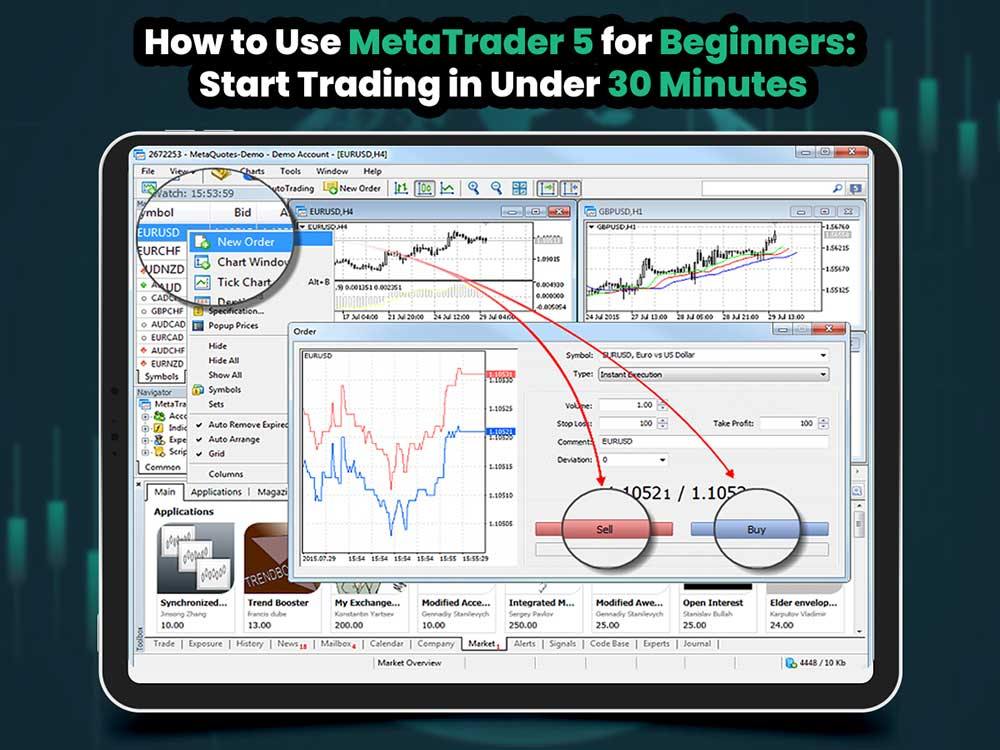
How to use MetaTrader 5 for beginners” is a common question for new traders. MT5 is a free, versatile trading platform suitable for both novices and experienced traders. It’s available on desktop and mobile, allowing you to trade forex, stocks, crypto, commodities like gold and oil, and even indices such as the S&P 500.
If you’ve been looking for a beginner-friendly guide to MetaTrader 5, this resource is designed to get you started quickly. It focuses on practical steps so you can begin trading in minutes—no unnecessary jargon.
With Dominion Markets, MT5 runs seamlessly. You can open a demo or live account directly through their platform, linking it to MT5 on desktop or mobile. Dominion Markets offers tight spreads and high leverage, ideal for short-term trades or smaller accounts. Just remember, high leverage can magnify both profits and losses, so trade carefully and manage your risk.
Start your trading journey today.
Get high-accuracy trading signals delivered directly to your Telegram. Subscribe to specialized packages tailored for the world’s top markets:
Free Crypto Signals Subscribe via Telegram
Free Forex Signals Subscribe via Telegram
Free VIP Signals (Gold, Oil, Forex, Bitcoin, Ethereum, Indices) Subscribe via Telegram
Free Trading Acoount Open With ORON LIMITED Signals (Gold, Oil, Forex, Bitcoin, Ethereum, Indices)
Open Account
Not profitable? Don’t worry! Join our copy trading system where we provide lower risk returns. Benefits of Joining Us:
-Lesser Risk as lot size is minimal
-Higher returns (approx. 5% to 10% monthly)
-Easy Deposit and Withdrawal with USDT using crypto wallets
-Lesser Drawdown
-Instant Support
-Invest Now and get guaranteed returns with us. DM us for more info❤️
-Start Now
*Copy Trading is free but we charge some percentage of profit as fees.*
Full VIP signals performance report for September 22–26, 2025:
How to Use MetaTrader 5 for Beginners: A Step-by-Step Guide
This section provides a clear, beginner-friendly guide to using MetaTrader 5. Whether you’re on desktop or mobile, these steps make it easy to navigate the platform, place trades, and manage your account confidently. Follow this walkthrough to get comfortable with MT5 and start trading effectively.
Step 1: Download and Install MetaTrader 5
Download and Install MetaTrader 5
For beginners learning how to use MetaTrader 5, the first step is downloading the platform. You can get MT5 directly from Dominion Markets, or install the mobile app via the Google Play Store or Apple App Store by searching for “MetaTrader” or “Dominion Markets.”
After installation, launch the platform and accept the terms and conditions. The app may request access to files and permission to send notifications—allow both so your data stays updated and you receive trade alerts. This setup only takes a few moments.
Step 2: Open a Demo or Live Account
Open a Demo or Live Account
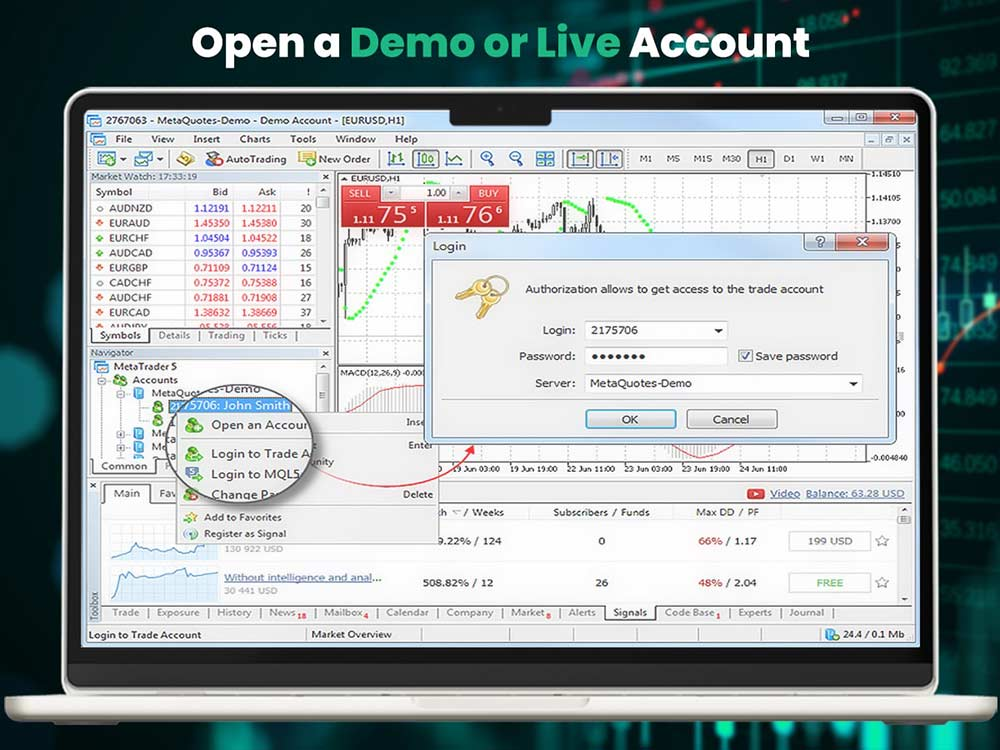
For beginners learning how to use MetaTrader 5, it’s best to start with a demo account. This lets you practice trading with virtual funds before risking real money. When you first launch MT5, it may suggest opening a demo account, but you can also select Dominion Markets manually.
On desktop, go to “File” > “Open an Account”. On mobile, tap “Settings” > “New Account”. Enter your broker’s name—here, choose Dominion Markets—and select “Demo” if you’re not ready for live trading.
Fill in your personal details, choose your account type, and set a deposit amount. Many traders start with $3,000 to simulate a small real account. MT5 will then email your login details.
To maximize learning, consider using an MT5 simulator. It replicates live market conditions, allowing you to test strategies safely—a key step in mastering MetaTrader 5 for beginners.
When you’re ready to trade with real funds, open a live account with a broker, since MT5 itself doesn’t act as a broker.
Start Your Trading Journey Today
Get high-accuracy trading signals delivered directly to your Telegram. Subscribe to specialized packages tailored for the world’s top markets:
Free Crypto Signals Subscribe via Telegram
Free Forex Signals Subscribe via Telegram
Free VIP Signals (Gold, Oil, Forex, Bitcoin, Ethereum, Indices) Subscribe via Telegram
Free Trading Acoount Open With ORON LIMITED Signals (Gold, Oil, Forex, Bitcoin, Ethereum, Indices)
Open Account
Not profitable? Don’t worry! Join our copy trading system where we provide lower risk returns. Benefits of Joining Us:
-Lesser Risk as lot size is minimal
-Higher returns (approx. 5% to 10% monthly)
-Easy Deposit and Withdrawal with USDT using crypto wallets
-Lesser Drawdown
-Instant Support
-Invest Now and get guaranteed returns with us. DM us for more info❤️
-Start Now
*Copy Trading is free but we charge some percentage of profit as fees.*
Full VIP signals performance report for September 22–26, 2025:
3. Connect to Your Account
A crucial step in learning how to use MetaTrader 5 for beginners is logging in and ensuring your account is properly connected. Use the login credentials MT5 provided.
On desktop, enter your login and password, then check the bottom right corner. Green bars and the word “Connected” indicate your data feed is active. If you see red bars or a “No connection” message, verify your login information and internet connection.
On mobile, it’s even simpler. Your account name appears at the top of the home screen. If you’re logged in, your current balance, equity, and margin are visible on the “Trade” screen, confirming that the app is synced and ready for trading.
4. Understand the Quotes Tab
Understand the Quotes Tab
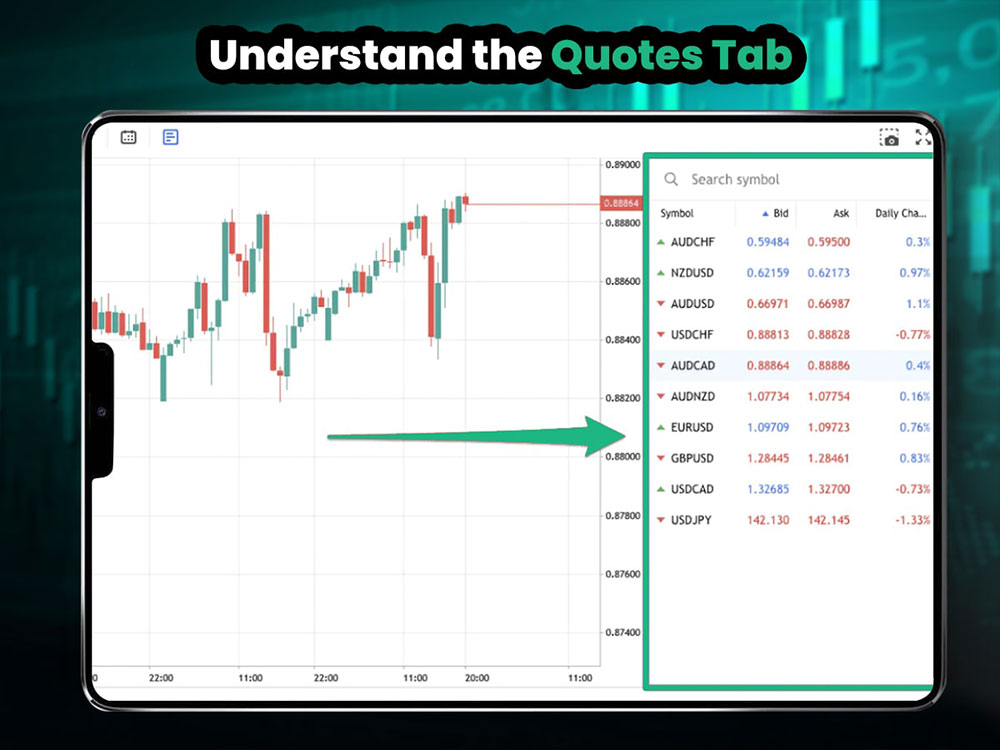
The Quotes tab displays all the tradable assets on MT5, listed by their symbols, such as EURUSD or USDJPY. Each symbol shows the current bid and ask prices, which update in real time. For beginners learning how to use MetaTrader 5, getting familiar with this screen is essential.
To add or remove trading pairs:
- Desktop: Right-click the Market Watch window > Symbols. Browse categories or search for the pair you want to trade.
- Mobile: Tap the “+” icon in the Quotes tab. Choose from categories like Forex Majors, Indices, or Commodities, then tap a symbol to add it.
To remove pairs on mobile:
- Tap the pencil icon in the top-right corner, select the pairs you want to remove, and tap the trash bin.
To reorder pairs:
- Tap and hold the three lines next to a symbol, then drag it up or down. You can arrange them by preference or group similar types together, like all USD pairs in one section.
5. Open and Read a Chart
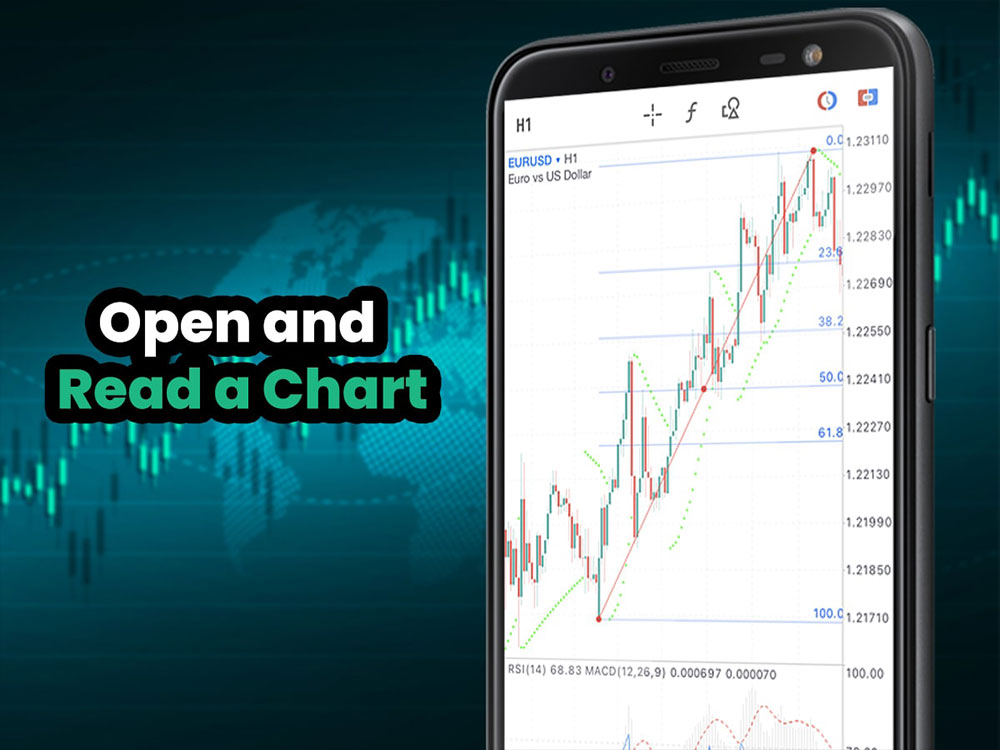
Open and Read a Chart
Learning to read charts is a key part of understanding how to use MetaTrader 5 for beginners. Charts display price movements over time and help you identify trends, support, and resistance levels. Each bar or candle represents a set time period—like one minute, one hour, or one day. Green candles indicate the price went up, while red candles show it went down. This visual representation makes it easier to decide when to enter or exit a trade compared to just looking at numbers.
To open a chart:
- Desktop: Right-click a pair in Market Watch > Chart Window.
- Mobile: Tap the pair > Chart.
To adjust chart settings:
- Change the chart type to candlesticks, which is the most popular view for traders.
- Customize colors and background:
- Desktop: Right-click the chart > Properties.
- Mobile: Go to Settings > Charts.
6. Choose Your Timeframe
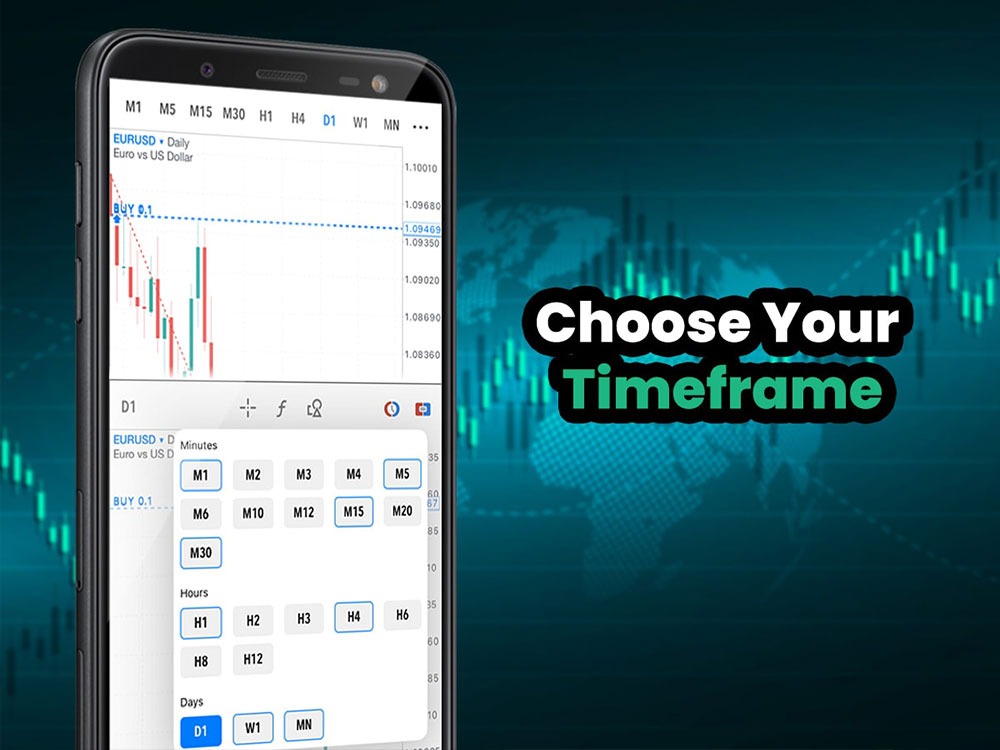
Timeframes
Timeframes let you zoom in or out on price movements, showing how the market behaves over a specific period. Short timeframes, like 1 minute (M1), reveal quick, small price changes, while longer timeframes, like 1 day (D1) or 1 month (MN), highlight broader trends.
- Day traders often use M1, M5, or M15 to spot rapid trading opportunities.
- Swing traders typically focus on H1 or H4 to catch medium-term trends.
- Long-term traders rely on D1 and above to follow major market moves.
Switching between timeframes gives a clearer picture of the market’s current position and possible direction. Understanding this is an important step in learning how to use MetaTrader 5 for beginners.
Common timeframes:
- M1 = 1-minute candles
- M15 = 15-minute candles
- H1 = 1-hour candles
- D1 = 1-day candles
Use the toolbar on desktop or the clock icon on mobile to switch timeframes. On mobile, you can also manage which timeframes are visible by tapping the gear icon in the timeframe menu. Choosing the right timeframe for your strategy is essential to effective trading.
7. Add MT5 Indicators and Drawing Tools
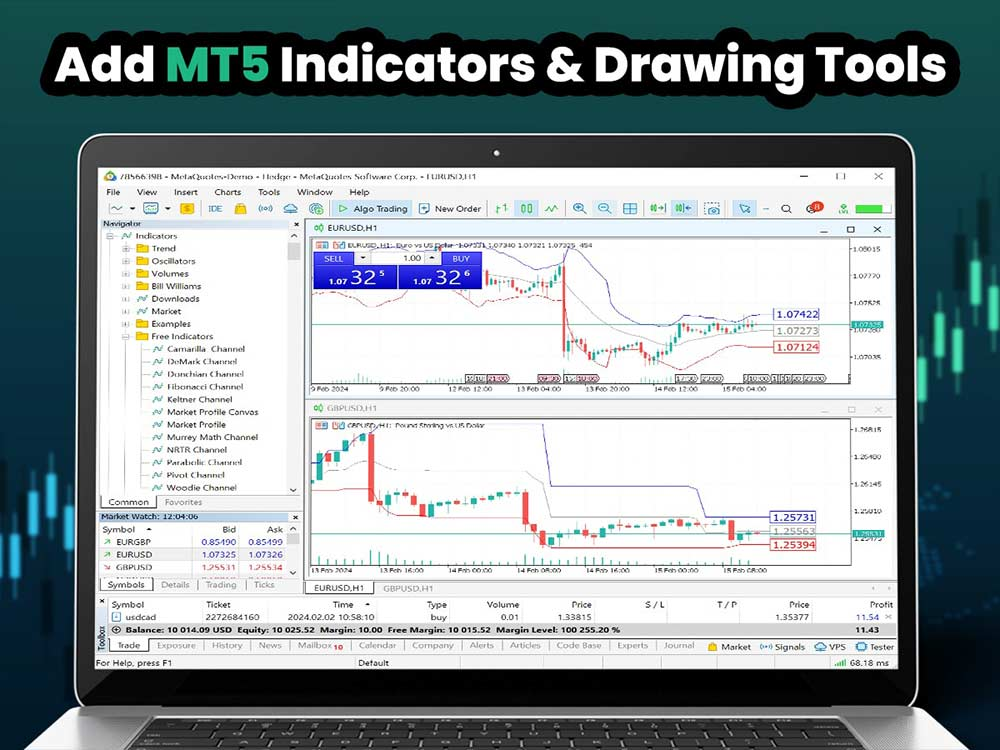
Add MT5 Indicators and Drawing Tools
MT5 indicators help you analyze the market by highlighting patterns or signals that aren’t immediately obvious from price alone. Traders use them to decide when to enter or exit trades. Some indicators track trends, while others measure momentum or volatility. You don’t need to use many at once—focus on a few that you understand and learn how they behave over time.
For beginners learning how to use MetaTrader 5, start with simple, widely used indicators:
- Bollinger Bands
- Moving Averages
- RSI (Relative Strength Index)
To add indicators in MT5:
- Desktop: Click Insert > Indicators
- Mobile: Tap the fx icon on the chart
You can also use drawing tools like trendlines or rectangles to mark important price levels:
- Desktop: Use the toolbar at the top of the screen
- Mobile: Tap the object icon (triangle, square, or circle) and select your tool
8. Place a Trade on MetaTrader 5
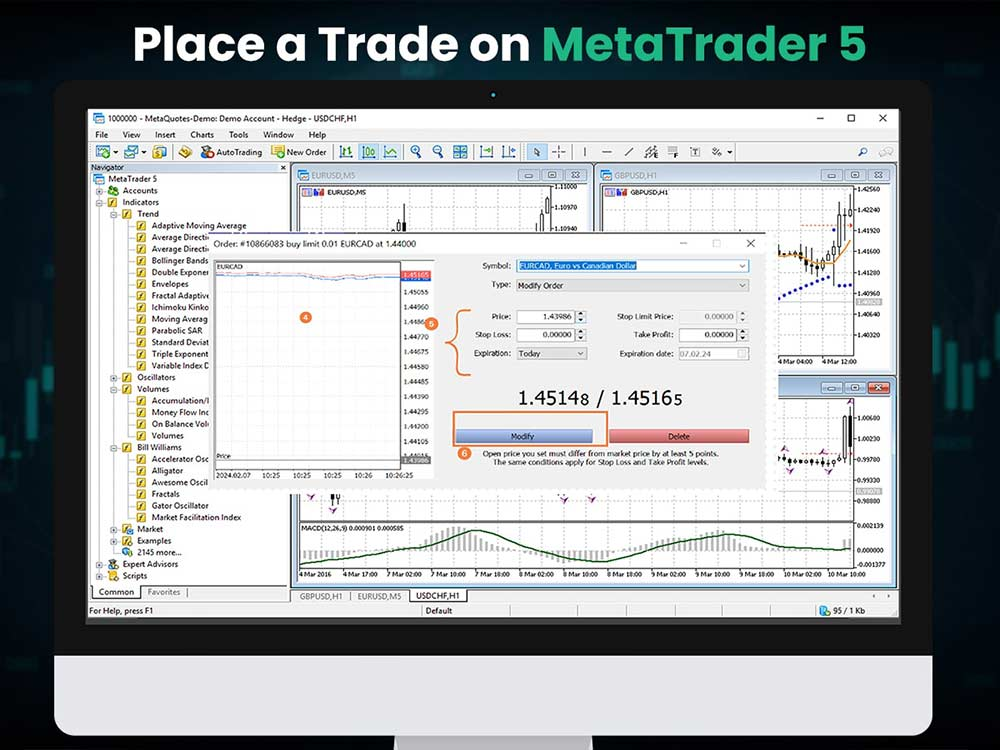
Place a Trade on MetaTrader 5
Learning how to place a trade is a key step when figuring out how to use MetaTrader 5 for beginners. This is where all your setup and preparation comes into action.
To open a trade manually:
- Desktop: Click New Order
- Mobile: Tap the asset and select Trade
Then set:
- Volume (lot size) – how big your position will be
- Stop Loss – the price level where the trade will automatically close if it moves against you
- Take Profit – the price level where it will close in profit
- Order Type – Market or Pending
Finally, click Buy or Sell to execute the trade.
On MetaTrader 5 mobile, you can also use drag-and-drop to set trades:
- Tap the clock icon to open the trade interface
- Drag the SL and TP lines directly on the chart
- Tap the arrow to confirm
- Set your lot size and place the trade
Once you’ve made your first trade, it’s helpful to know how MT5 compares to MT4. MT5 is newer, faster, and supports more order types, timeframes, and asset classes. MT4 is simpler and still popular for forex-only trading, but MT5 is generally the better choice for long-term trading.
Start Your Trading Journey Today
Get high-accuracy trading signals delivered directly to your Telegram. Subscribe to specialized packages tailored for the world’s top markets:
Free Crypto Signals Subscribe via Telegram
Free Forex Signals Subscribe via Telegram
Free VIP Signals (Gold, Oil, Forex, Bitcoin, Ethereum, Indices) Subscribe via Telegram
Free Trading Acoount Open With ORON LIMITED Signals (Gold, Oil, Forex, Bitcoin, Ethereum, Indices)
Open Account
Not profitable? Don’t worry! Join our copy trading system where we provide lower risk returns. Benefits of Joining Us:
-Lesser Risk as lot size is minimal
-Higher returns (approx. 5% to 10% monthly)
-Easy Deposit and Withdrawal with USDT using crypto wallets
-Lesser Drawdown
-Instant Support
-Invest Now and get guaranteed returns with us. DM us for more info❤️
-Start Now
*Copy Trading is free but we charge some percentage of profit as fees.*
Full VIP signals performance report for September 22–26, 2025:
